Debugging and Profiling
A golden rule in programming is that code does not do what you expect it to do, but what you tell it to do. Bridging that gap can sometimes be a quite difficult feat. In this lecture we are going to cover useful techniques for dealing with buggy and resource hungry code: debugging and profiling.
Debugging
Printf Debugging and Logging
“The most effective debugging tool is still careful thought, coupled with judiciously placed print statements” — Brian Kernighan, Unix for Beginners.
A first approach to debug a program is to add print statements around where you have detected the problem, and keep iterating until you have extracted enough information to understand what is responsible for the issue.
A second approach is to use logging in your program, instead of ad hoc print statements. Logging is essentially “printing with more care”, and is usually done through a logging framework that includes built-in support for things like:
- the ability to direct the logs (or subsets of the logs) to other output locations;
- setting severity levels (such as INFO, DEBUG, WARN, ERROR, etc.) and allow you to filter the output according to those; and
- support for structured logging of data related to the log entries, which can then be extracted more easily after the fact.
Logging statements you’ll also usually proactively put in while programming so that the data you need to debug may already be there! And indeed, once you’ve found and fixed a problem using print statements, it’s often worthwhile to convert those prints into proper log statements before removing them. This way, if similar bugs occur in the future, you’ll already have the diagnostic information you need without modifying the code.
Third-party logs: Many programs support the
-vor--verboseflag to print more information when they run. This can be useful for discovering why a given command fails. Some even allow repeating the flag for more details. When debugging issues with services (databases, web servers, etc.), check their logs—often in/var/log/on Linux. Usejournalctl -u <service>to view logs for systemd services. For third-party libraries, check if they support debug logging via environment variables or configuration.
Debuggers
Print debugging works well when you know what to print and can easily modify and re-run your code. Debuggers become valuable when you’re not sure what information you need, when the bug only manifests in hard-to-reproduce conditions, or when modifying and restarting the program is expensive (long startup times, complex state to recreate, etc.).
Debuggers are programs that let you interact with the execution of a program as it happens, allowing you to:
- Halt execution when it reaches a certain line.
- Step through one instruction at a time.
- Inspect values of variables after a crash.
- Conditionally halt execution when a given condition is met.
- And many more advanced features.
Most programming languages support (or come with) some form of debugger. The most versatile are general-purpose debuggers like gdb (GNU Debugger) and lldb (LLVM Debugger), which can debug any native binary. Many languages also have language-specific debuggers that integrate more tightly with the runtime (like Python’s pdb or Java’s jdb).
gdb is the de-facto standard debugger for C, C++, Rust, and other compiled languages. It lets you probe pretty much any process and get its current machine state: registers, stack, program counter, and more.
Some useful GDB commands:
run- Start the programb {function}orb {file}:{line}- Set a breakpointc- Continue executionstep/next/finish- Step in / step over / step outp {variable}- Print value of variablebt- Show backtrace (call stack)watch {expression}- Break when the value changes
Consider using GDB’s TUI mode (
gdb -tuior pressCtrl-x ainside GDB) for a split-screen view showing source code alongside the command prompt.
Record-Replay Debugging
Some of the most frustrating bugs are Heisenbugs: bugs that seem to disappear or change behavior when you try to observe them. Race conditions, timing-dependent bugs, and issues that only appear under certain system conditions fall into this category. Traditional debugging is often useless here because running the program again produces different behavior (e.g., print statements may slow down the code sufficiently that the race no longer happens).
Record-replay debugging solves this by recording a program’s execution and allowing you to replay it deterministically as many times as you need. Even better, you can reverse through the execution to find exactly where things went wrong.
rr is a powerful tool for Linux that records program execution and allows deterministic replay with full debugging capabilities. It works with GDB, so you already know the interface.
Basic usage:
# Record a program execution
rr record ./my_program

# Replay the recording (opens GDB)
rr replay
The magic happens during replay. Because the execution is deterministic, you can use reverse debugging commands:
reverse-continue(rc) - Run backwards until hitting a breakpointreverse-step(rs) - Step backwards one linereverse-next(rn) - Step backwards, skipping function callsreverse-finish- Run backwards until entering the current function
This is incredibly powerful for debugging. Say you have a crash—instead of guessing where the bug is and setting breakpoints, you can:
- Run to the crash
- Inspect the corrupted state
- Set a watchpoint on the corrupted variable
reverse-continueto find exactly where it was corrupted
When to use rr:
- Flaky tests that fail intermittently
- Race conditions and threading bugs
- Crashes that are hard to reproduce
- Any bug where you wish you could “go back in time”
Note: rr only works on Linux and requires hardware performance counters. It doesn’t work in VMs that don’t expose these counters, such as on most AWS EC2 instances, and it doesn’t support GPU access. For macOS, check out Warpspeed.
rr and concurrency: Because rr records execution deterministically, it serializes thread scheduling. This means some race conditions may not manifest under rr if they depend on specific timing. rr is still useful for debugging races—once you capture a failing run, you can replay it reliably—but you may need multiple recording attempts to catch an intermittent bug. For bugs that don’t involve concurrency, rr shines brightest: you can always reproduce the exact execution and use reverse debugging to hunt down corruption.
System Call Tracing
Sometimes you need to understand how your program interacts with the operating system. Programs make system calls to request services from the kernel—opening files, allocating memory, creating processes, and more. Tracing these calls can reveal why a program is hanging, what files it’s trying to access, or where it’s spending time waiting.
strace (Linux) and dtruss (macOS)
strace lets you observe every system call a program makes:
# Trace all system calls
strace ./my_program

# Trace only file-related calls
strace -e trace=file ./my_program

# Follow child processes (important for programs that start other programs)
strace -f ./my_program

# Trace a running process
strace -p <PID>

# Show timing information
strace -T ./my_program
On macOS and BSD, use
dtruss(which wrapsdtrace) for similar functionality:
For deeper dives into
strace, check out Julia Evans’ excellent strace zine.
bpftrace and eBPF
eBPF (extended Berkeley Packet Filter) is a powerful Linux technology that allows running sandboxed programs in the kernel. bpftrace provides a high-level syntax for writing eBPF programs. These are arbitrary programs running in the kernel, and thus have huge expressive power (though also a somewhat clumsy awk-like syntax). The most common use-case for them is to investigate what system calls are being invoked, including aggregations (like counts or latency statistics) or introspecting (or even filtering on) system call arguments.
# Trace file opens system-wide (prints immediately)
sudo bpftrace -e 'tracepoint:syscalls:sys_enter_openat { printf("%s %s\n", comm, str(args->filename)); }'

# Count system calls by name (prints summary on Ctrl-C)
sudo bpftrace -e 'tracepoint:syscalls:sys_enter_* { @[probe] = count(); }'
However, you can also write eBPF programs directly in C using a toolchain like bcc, which also ships with many handy tools like biosnoop for printing latency distributions for disk operations or opensnoop for printing all open files.
Where strace is useful because it’s easy to “just get up and running”, bpftrace is what you should reach for when you need lower overhead, want to trace through kernel functions, need to do any kind of aggregation, etc. Note that bpftrace has to run as root though, and that it generally monitors the entire kernel, not just a particular process. To target a specific program, you can filter by command name or PID:
# Filter by command name (prints summary on Ctrl-C)
sudo bpftrace -e 'tracepoint:syscalls:sys_enter_* /comm == "bash"/ { @[probe] = count(); }'

# Trace a specific command from startup using -c (cpid = child PID)
sudo bpftrace -e 'tracepoint:syscalls:sys_enter_* /pid == cpid/ { @[probe] = count(); }' -c 'ls -la'
The -c flag runs the specified command and sets cpid to its PID, which is useful for tracing a program from the moment it starts. When the traced command exits, bpftrace prints the aggregated results.
Network Debugging
For network issues, tcpdump and Wireshark let you capture and analyze network packets:
# Capture packets on port 80
sudo tcpdump -i any port 80

# Capture and save to file for Wireshark analysis
sudo tcpdump -i any -w capture.pcap
For HTTPS traffic, the encryption makes tcpdump less useful. Tools like mitmproxy can act as an intercepting proxy to inspect encrypted traffic. Browser developer tools (Network tab) are often the easiest way to debug HTTPS requests from web applications—they show decrypted request/response data, headers, and timing.
Memory Debugging
Memory bugs—buffer overflows, use-after-free, memory leaks—are among the most dangerous and difficult to debug. They often don’t crash immediately but corrupt memory in ways that cause problems much later.
Sanitizers
One approach to finding memory bugs is to use sanitizers, which are compiler features that instrument your code to detect errors at runtime. For example, the widely used AddressSanitizer (ASan) detects:
- Buffer overflows (stack, heap, and global)
- Use-after-free
- Use-after-return
- Memory leaks
# Compile with AddressSanitizer
gcc -fsanitize=address -g program.c -o program
./program
There are a variety of useful sanitizers:
- ThreadSanitizer (TSan): Detects data races in multithreaded code (
-fsanitize=thread) - MemorySanitizer (MSan): Detects reads of uninitialized memory (
-fsanitize=memory) - UndefinedBehaviorSanitizer (UBSan): Detects undefined behavior like integer overflow (
-fsanitize=undefined)
Sanitizers require recompilation but are fast enough to use in CI pipelines and during regular development.
Valgrind: When You Can’t Recompile
Valgrind instead runs your program in something akin to a virtual machine to detect memory errors. It’s slower than sanitizers but doesn’t require recompilation:
valgrind --leak-check=full ./my_program
Use Valgrind when:
- You don’t have source code
- You can’t recompile (third-party libraries)
- You need specific tools not available as sanitizers
Valgrind is actually a really powerful controlled execution environment, and we’ll see more of it later when we get to profiling!
AI for Debugging
Large language models have become surprisingly useful debugging assistants. They excel at certain debugging tasks that complement traditional tools.
Where LLMs shine:
-
Explaining cryptic error messages: Compiler errors, especially from C++ templates or Rust’s borrow checker, can be notoriously cryptic. LLMs can translate them into plain English and suggest fixes.
-
Traversing language and abstraction boundaries: If you’re debugging a problem that spans multiple languages (say, a bug in a C library that manifests through a Python binding), LLMs can help navigate the different layers. They’re particularly good at understanding FFI boundaries, build system issues, and cross-language debugging (e.g., my program errors, but I believe it is because of a bug in one of my dependencies).
-
Correlating symptoms with root causes: “My program works fine but uses 10x more memory than expected” is the kind of vague symptom that LLMs can help investigate, suggesting likely causes and what to look for.
-
Analyzing crash dumps and stack traces: Paste a stack trace and ask what might have caused it.
Note on debug symbols: For meaningful stack traces and debugging, ensure your binaries (and any linked libraries) are compiled with debug symbols (
-gflag). Debug information is typically stored in DWARF format. Additionally, compiling with frame pointers (-fno-omit-frame-pointer) makes stack traces more reliable, especially for profiling tools. Without these, stack traces may show only memory addresses or be incomplete. This matters more for natively compiled programs (C++, Rust) than Python or Java.
Limitations to keep in mind:
- LLMs can hallucinate plausible-sounding but wrong explanations
- They may suggest fixes that mask the bug rather than fix it
- Always verify suggestions with actual debugging tools
- They work best as a complement to, not replacement for, understanding your code
This is distinct from the general AI coding capabilities covered in the Development Environment lecture. Here we’re specifically talking about using LLMs as a debugging aid.
Profiling
Even if your code functionally behaves as you would expect, that might not be good enough if it takes all your CPU or memory in the process. Algorithms classes often teach big O notation but not how to find hot spots in your programs. Since premature optimization is the root of all evil, you should learn about profilers and monitoring tools. They will help you understand which parts of your program are taking most of the time and/or resources so you can focus on optimizing those parts.
Timing
The simplest way to measure performance is to time things. In many scenarios it can be enough to just print the time it took your code between two points.
However, wall clock time can be misleading since your computer might be running other processes at the same time or waiting for events to happen. The time command distinguishes between Real, User, and Sys time:
- Real - Wall clock time from start to finish, including time spent waiting
- User - Time spent in the CPU running user code
- Sys - Time spent in the CPU running kernel code
$ time curl https://missing.csail.mit.edu &> /dev/null
real	0m0.272s
user	0m0.079s
sys	    0m0.028s
Here the request took nearly 300 milliseconds (real time) but only 107ms of CPU time (user + sys). The rest was waiting for the network.
Resource Monitoring
Sometimes the first step towards analyzing the performance of your program is to understand what its actual resource consumption is. Programs often run slowly when they are resource constrained.
-
General Monitoring:
htopis an improved version oftopthat presents various statistics for currently running processes. Useful keybinds:<F6>to sort processes,tto show tree hierarchy,hto toggle threads. There’s alsobtopwhich monitors way more things. -
I/O Operations:
iotopdisplays live I/O usage information. -
Memory Usage:
freedisplays total free and used memory. -
Open Files:
lsoflists file information about files opened by processes. Useful for checking which process has opened a specific file. -
Network Connections:
sslets you monitor network connections. A common use case is figuring out what process is using a given port:ss -tlnp | grep :8080. -
Network Usage:
nethogsandiftopare good interactive CLI tools for monitoring network usage per process.
Visualizing Performance Data
Humans spot patterns in graphs much faster than in tables of numbers. When analyzing performance, plotting your data often reveals trends, spikes, and anomalies that would be invisible in raw numbers.
Making data plottable: When adding print or log statements for debugging, consider formatting the output so it can be easily graphed later. A simple timestamp and value in CSV format (1705012345,42.5) is much easier to plot than a prose sentence. JSON-structured logs can also be parsed and plotted with minimal effort. In other words, log your data in a tidy way.
Quick plotting with gnuplot: For simple command-line plotting, gnuplot can generate graphs directly from data files:
# Plot a simple CSV with timestamp,value
gnuplot -e "set datafile separator ','; plot 'latency.csv' using 1:2 with lines"
Iterative exploration with matplotlib and ggplot2: For deeper analysis, Python’s matplotlib and R’s ggplot2 enable iterative exploration. Unlike one-off plotting, these tools let you quickly slice and transform data to investigate hypotheses. ggplot2’s facet plots are particularly powerful—you can split a single dataset across multiple subplots by category (e.g., faceting request latency by endpoint or time-of-day) to tease out patterns that would otherwise be hidden.
Example use cases:
- Plotting request latency over time reveals periodic slowdowns (garbage collection, cron jobs, traffic patterns) that raw percentiles obscure
- Visualizing insert times for a growing data structure can expose algorithmic complexity issues—a plot of vector insertions will show characteristic spikes when the backing array doubles in size
- Faceting metrics by different dimensions (request type, user cohort, server) often reveals that a “system-wide” problem is actually isolated to one category
CPU Profilers
Most of the time when people refer to profilers they mean CPU profilers. There are two main types:
- Tracing profilers keep a record of every function call your program makes
- Sampling profilers probe your program periodically (commonly every millisecond) and record the program’s stack
Sampling profilers have lower overhead and are generally preferred for production use.
perf: the sampling profiler
perf is the standard Linux profiler. It can profile any program without recompilation:
perf stat gives you a quick overview of where time is spent:
$ perf stat ./slow_program

 Performance counter stats for './slow_program':

         3,210.45 msec task-clock                #    0.998 CPUs utilized
               12      context-switches          #    3.738 /sec
                0      cpu-migrations            #    0.000 /sec
              156      page-faults               #   48.587 /sec
   12,345,678,901      cycles                    #    3.845 GHz
    9,876,543,210      instructions              #    0.80  insn per cycle
    1,234,567,890      branches                  #  384.532 M/sec
       12,345,678      branch-misses             #    1.00% of all branches
Profiler output for real world programs will contain large amounts of information. Humans are visual creatures and are quite terrible at reading large amounts of numbers. Flame graphs are a visualization that makes profiling data much easier to understand.
A flame graph displays a hierarchy of function calls across the Y axis and time taken proportional to the X axis. They’re interactive—you can click to zoom into specific parts of the program.
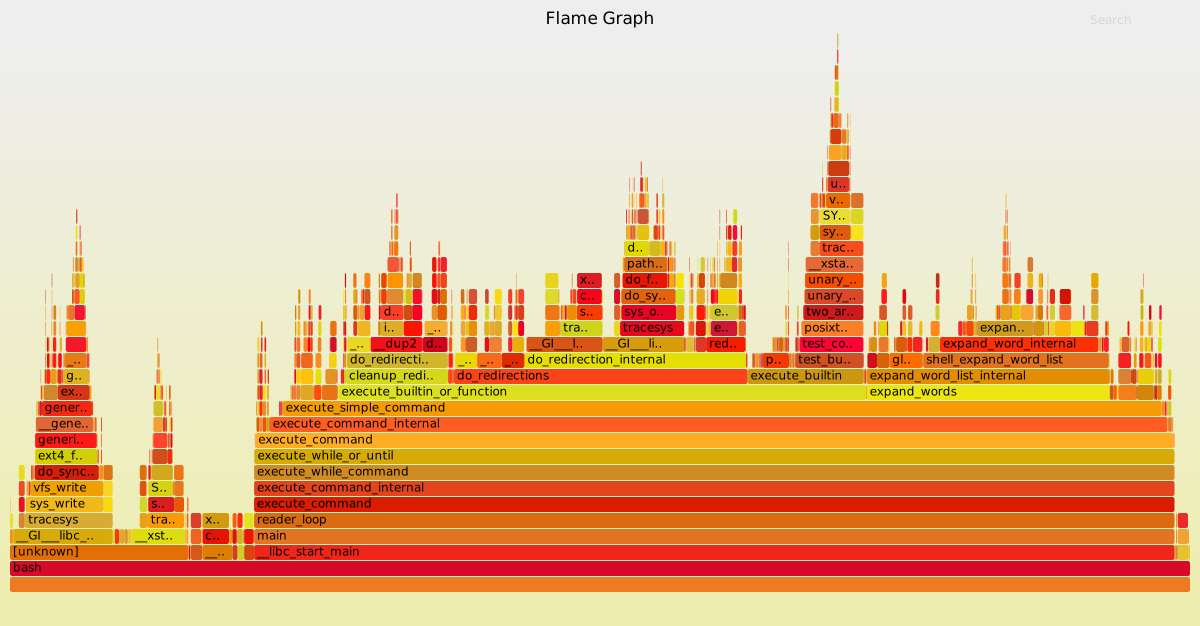
To generate a flame graph from perf data:
# Record profile
perf record -g ./my_program

# Generate flame graph (requires flamegraph scripts)
perf script | stackcollapse-perf.pl | flamegraph.pl > flamegraph.svg
Consider using Speedscope for an interactive web-based flame graph viewer, or Perfetto for comprehensive system-level analysis.
Valgrind’s Callgrind: the tracing profiler
callgrind is a profiling tool that records the call history and instruction counts of your program. Unlike sampling profilers, it provides exact call counts and can show the relationship between callers and callees:
# Run with callgrind
valgrind --tool=callgrind ./my_program

# Analyze with callgrind_annotate (text) or kcachegrind (GUI)
callgrind_annotate callgrind.out.<pid>
kcachegrind callgrind.out.<pid>
Callgrind is slower than sampling profilers but provides precise call counts and can optionally simulate cache behavior (with --cache-sim=yes) if you need that information.
If you’re using a particular language, there may be more specialized profilers. For example, Python has
cProfileandpy-spy, Go hasgo tool pprof, and Rust hascargo-flamegraph(which actually works for any compiled program!).
Memory Profilers
Memory profilers help you understand how your program uses memory over time and find memory leaks.
Valgrind’s Massif
massif profiles heap memory usage:
valgrind --tool=massif ./my_program
ms_print massif.out.<pid>
This shows you heap usage over time, helping identify memory leaks and excessive allocation.
For Python,
memory-profilerprovides line-by-line memory usage information.
Benchmarking
When you need to compare the performance of different implementations or tools, hyperfine is excellent for benchmarking command-line programs:
$ hyperfine --warmup 3 'fd -e jpg' 'find . -iname "*.jpg"'
Benchmark #1: fd -e jpg
  Time (mean ± σ):      51.4 ms ±   2.9 ms    [User: 121.0 ms, System: 160.5 ms]
  Range (min … max):    44.2 ms …  60.1 ms    56 runs

Benchmark #2: find . -iname "*.jpg"
  Time (mean ± σ):      1.126 s ±  0.101 s    [User: 141.1 ms, System: 956.1 ms]
  Range (min … max):    0.975 s …  1.287 s    10 runs

Summary
  'fd -e jpg' ran
   21.89 ± 2.33 times faster than 'find . -iname "*.jpg"'
For web development, browser developer tools include excellent profilers. See the Firefox Profiler and Chrome DevTools documentation.
Exercises
Debugging
-
Debug a sorting algorithm: The following pseudocode implements merge sort but contains a bug. Implement it in a language of your choice, then use a debugger (gdb, lldb, pdb, or your IDE’s debugger) to find and fix the bug.
function merge_sort(arr):
    if length(arr) <= 1:
        return arr
    mid = length(arr) / 2
    left = merge_sort(arr[0..mid])
    right = merge_sort(arr[mid..end])
    return merge(left, right)

function merge(left, right):
    result = []
    i = 0, j = 0
    while i < length(left) AND j < length(right):
        if left[i] <= right[j]:
            append result, left[i]
            i = i + 1
        else:
            append result, right[i]
            j = j + 1
    append remaining elements from left and right
    return result
Test vector:
merge_sort([3, 1, 4, 1, 5, 9, 2, 6])should return[1, 1, 2, 3, 4, 5, 6, 9]. Use breakpoints and step through the merge function to find where the incorrect element is being selected. -
Install
rrand use reverse debugging to find a corruption bug. Save this program ascorruption.c:#include <stdio.h> typedef struct { int id; int scores[3]; } Student; Student students[2]; void init() { students[0].id = 1001; students[0].scores[0] = 85; students[0].scores[1] = 92; students[0].scores[2] = 78; students[1].id = 1002; students[1].scores[0] = 90; students[1].scores[1] = 88; students[1].scores[2] = 95; } void curve_scores(int student_idx, int curve) { for (int i = 0; i < 4; i++) { students[student_idx].scores[i] += curve; } } int main() { init(); printf("=== Initial state ===\n"); printf("Student 0: id=%d\n", students[0].id); printf("Student 1: id=%d\n", students[1].id); curve_scores(0, 5); printf("\n=== After curving ===\n"); printf("Student 0: id=%d\n", students[0].id); printf("Student 1: id=%d\n", students[1].id); if (students[1].id != 1002) { printf("\nERROR: Student 1's ID was corrupted! Expected 1002, got %d\n", students[1].id); return 1; } return 0; }Compile with
gcc -g corruption.c -o corruptionand run it. Student 1’s ID gets corrupted, but the corruption happens in a function that only touches student 0. Userr record ./corruptionandrr replayto find the culprit. Set a watchpoint onstudents[1].idand usereverse-continueafter the corruption to find exactly which line of code overwrote it. -
Debug a memory error with AddressSanitizer. Save this as
uaf.c:#include <stdlib.h> #include <string.h> #include <stdio.h> int main() { char *greeting = malloc(32); strcpy(greeting, "Hello, world!"); printf("%s\n", greeting); free(greeting); greeting[0] = 'J'; printf("%s\n", greeting); return 0; }First compile and run without sanitizers:
gcc uaf.c -o uaf && ./uaf. It may appear to work. Now compile with AddressSanitizer:gcc -fsanitize=address -g uaf.c -o uaf && ./uaf. Read the error report. What bug does ASan find? Fix the issue it identifies. -
Use
strace(Linux) ordtruss(macOS) to trace the system calls made by a command likels -l. What system calls is it making? Try tracing a more complex program and see what files it opens. -
Use an LLM to help debug a cryptic error message. Try copying a compiler error (especially from C++ templates or Rust) and asking for an explanation and fix. Try putting some of the output from
straceor the address sanitizer into it.
Profiling
-
Use
perf statto get basic performance statistics for a program of your choice. What do the different counters mean? -
Profile with
perf record. Save this asslow.c:#include <math.h> #include <stdio.h> double slow_computation(int n) { double result = 0; for (int i = 0; i < n; i++) { for (int j = 0; j < 1000; j++) { result += sin(i * j) * cos(i + j); } } return result; } int main() { double r = 0; for (int i = 0; i < 100; i++) { r += slow_computation(1000); } printf("Result: %f\n", r); return 0; }Compile with debug symbols:
gcc -g -O2 slow.c -o slow -lm. Runperf record -g ./slow, thenperf reportto see where time is spent. Try generating a flame graph using the flamegraph scripts. -
Use
hyperfineto benchmark two different implementations of the same task (e.g.,findvsfd,grepvsripgrep, or two versions of your own code). -
Use
htopto monitor your system while running a resource-intensive program. Try usingtasksetto limit which CPUs a process can use:taskset --cpu-list 0,2 stress -c 3. Why doesn’tstressuse three CPUs? -
A common issue is that a port you want to listen on is already taken by another process. Learn how to discover that process: First execute
python -m http.server 4444to start a minimal web server on port 4444. On a separate terminal runss -tlnp | grep 4444to find the process. Terminate it withkill <PID>.
Licensed under CC BY-NC-SA.